 how-to
How Do You Secure a Smart Thermostat Network?
Last Updated: November 6, 2026
Quick Summary
Secure your smart thermostat network by changing default passwords, enabling multi-factor authentication, updating firmware, and hardening your router with WPA3 or WPA2 encryption. The most effective step is putting the thermostat on its own guest network or VLAN so a compromised device cannot reach your computers and phones.
- Device-level security takes about ten minutes: a real password, current firmware, and checked app permissions.
- Use WPA3 if supported and WPA2 at minimum, and never run open or WEP networks.
- A guest network is the practical isolation pick for most homes, costing nothing and built into most routers.
- Client isolation on a guest network can silently break local control and hub discovery even when the app still works.
- Check your router's connected-device list monthly for anything you do not recognize.
Table of Contents
- Why Your Smart Thermostat Is a Network Security Risk
- Smart Thermostat Security: Step 1, Lock Down the Device Itself
- Smart Home Network Setup: Router Hardening Basics
- How to Protect Your Home Network from Hackers with Segmentation
- pfSense for Smart Home Network Security: When It Makes Sense
- Troubleshooting Your Thermostat After Network Segmentation
- Ongoing Monitoring and What to Do If Your Thermostat Is Compromised
- Schedule a Professional Smart Thermostat Security Check
- Frequently Asked Questions
Why Your Smart Thermostat Is a Network Security Risk
Your smart thermostat network is a small computer on your home network around the clock, a door most people never lock. This guide covers securing your smart thermostat network, from device to router.
A smart thermostat controls your heating and cooling while talking to the internet. It holds your schedule, location habits, and login, and stays powered and online all day, exactly what an attacker wants.
How a Hacked Thermostat Affects Your Home
A hacked thermostat is rarely about someone messing with your temperature. The bigger risk is the foothold it gives them on your home network, where they can scan for other devices, try your Wi-Fi credentials, or add the thermostat to a botnet.
The practical fallout looks like this:
- Your login gets taken over and your schedule is wiped or changed
- The device is used to probe other gadgets on your network
- Remote access is abused to watch your comings and goings through usage patterns
Watch out: a thermostat that suddenly changes settings on its own, drops offline repeatedly, or reports logins you did not make is a device you should treat as compromised until you prove otherwise.
Smart Thermostat Security: Step 1, Lock Down the Device Itself
Start with the thermostat, not the router. Device-level security is the cheapest win and takes about ten minutes: a real password, current firmware, and app permissions you actually checked.
Passwords, Firmware, and App Permissions
Here is the order we recommend:
- Change the default password. Replace any default or shared password with a long, unique one stored in a password manager.
- Turn on multi-factor authentication. Most major thermostat apps support MFA. Enable it on the account, not just the device.
- Update firmware and the app. Install every update the manufacturer pushes; they patch the flaws attackers rely on.
- Review app permissions and integrations. Remove any third-party service or voice assistant link you no longer use.
- Disable features you do not use. Turn off remote access, vacation alerts, or geofencing if you never touch them.
If your thermostat needed special wiring during setup, keep that context in mind when you reconnect it later. Our guide to smart thermostats without common wires covers the wiring quirks that affect setup and reconnection.
Smart Home Network Setup: Router Hardening Basics
The router is the front door for every device in your house. A smart home network setup that skips router hardening leaves the thermostat exposed no matter how strong its password is, and the fixes take one sitting.
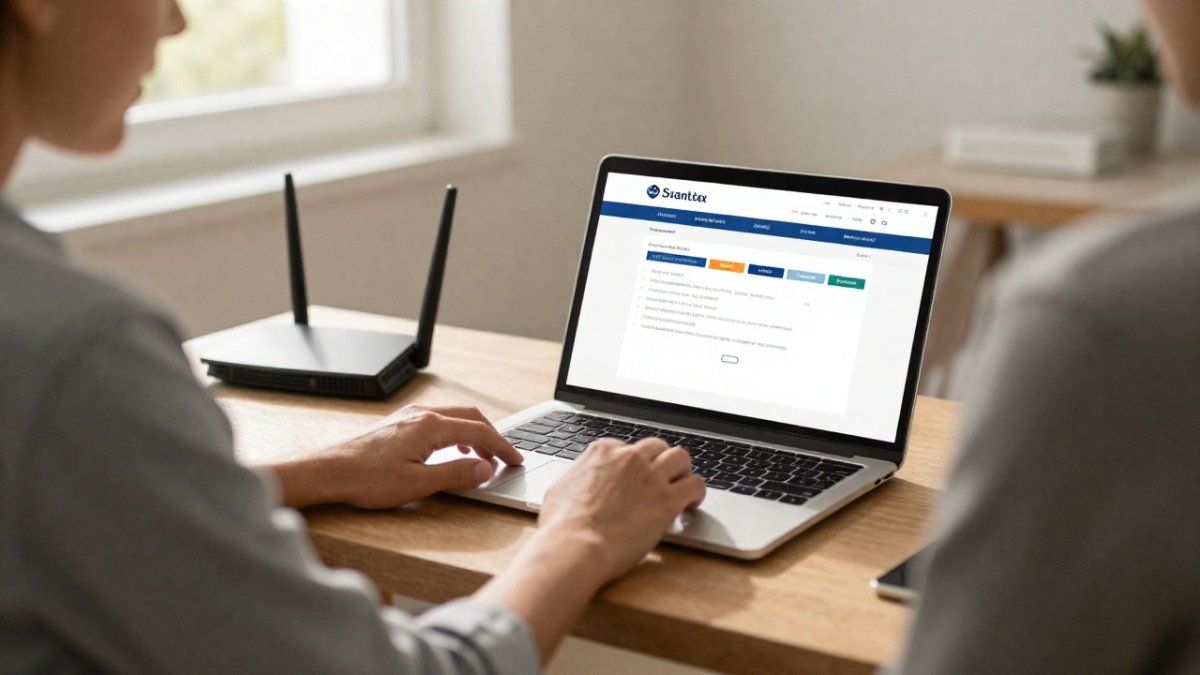
Work through this list:
- Change the router's admin credentials. The default admin login is the first thing an attacker tries.
- Set modern Wi-Fi encryption. Use WPA3 if supported, WPA2 at minimum. Never run open or WEP networks.
- Update router firmware. Check on a schedule, not once a year.
The Wi-Fi Alliance's WPA3 specification explains what WPA3 adds over WPA2. In short, it fixes weaknesses in the older handshake that attackers have learned to exploit.
How to Protect Your Home Network from Hackers with Segmentation
The single most effective step is to put your thermostat on its own network. Limiting blast radius is a practical way to protect a home network: if one device falls, the rest stay safe.
Segmentation splits your home network so devices cannot freely talk to each other. Thermostats, smart plugs, and cameras go on one segment; laptops, phones, and work machines on another.
Guest Network vs. VLAN: Which Isolation Fits Your Thermostat?
Both approaches work. They differ in cost, effort, and how much they break thermostat features.
| Approach | Setup Effort | Cost | Best For |
|---|---|---|---|
| Guest network | Low, built into most routers | None | Most homes with a handful of smart devices |
| VLAN | High, needs managed switch or router support | Hardware cost | Larger setups and advanced users |
| Client isolation | Low, one router toggle | None | Keeping IoT devices from talking to each other |
A guest network is the practical pick for most people, isolating your thermostat with a few clicks.
A VLAN gives tighter control and firewall rules between segments, but demands more setup and gear. If you are not comfortable in router settings, the guest network gets you most of the benefit for none of the headache.
Keeping App Control, Voice Assistants, and Integrations Working
Isolation is only useful if the thermostat still does its job. Before you segment, list every way you control the device, manufacturer's app, voice assistant, smart-home hub, local schedule, remote access, and decide which must survive.
- Cloud app control: Usually survives guest-network isolation because both the phone and thermostat connect outbound to the manufacturer. Confirm by toggling the thermostat from the app on cellular data.
- Voice assistants: These route through the cloud too, but the assistant account must still be linked to the thermostat account. Re-check the link after any network change.
- Local hub integrations: Matter, Zigbee, Z-Wave, and some Wi-Fi local APIs depend on the hub and thermostat seeing each other. If your hub sits on the main network and the thermostat is isolated, the integration breaks. Put the hub on the same segment, or add a firewall rule permitting only the hub's address to reach the thermostat on the required port.
Watch out: client isolation on a guest network will silently break local control and hub discovery even though the app still works from outside the house, so test a local schedule change and a hub command, not just the app.
Router Settings That Make Segmentation Practical
Menus vary by router brand and firmware, but the settings you need are consistent: a guest network section, a client isolation or AP isolation toggle, a DHCP reservation list, and firewall or access-control rules.
- Guest network: Enable it, give it a distinct name and a strong unique password, and keep it separate from the main network.
- Client isolation: Leave it on if you only use cloud control. Turn it off, or add an allow rule, if you need local hub or app discovery.
- DHCP reservation: Assign the thermostat a fixed address so firewall rules stay valid after a reboot.
If your router does not expose firewall rules between guest and main networks, the guest network is still worth using because it limits lateral movement. For households with many devices or a home lab, a router platform that supports VLANs and per-device rules gives you control the guest network cannot.
pfSense for Smart Home Network Security: When It Makes Sense
It makes sense if you already run a home lab, want per-device firewall rules, or manage a large number of connected devices.
If you go this route, the payoff is control. You can block your thermostat from reaching anything except the manufacturer's servers, log its traffic, and isolate it fully. The pfSense documentation covers the firewall and VLAN setup in detail.
Troubleshooting Your Thermostat After Network Segmentation
Moving a thermostat to a new network breaks things: the app may lose the device, the schedule may stop syncing, the thermostat may sit offline, or a voice assistant may report it unreachable. Work through the checks below in order, because each rules out a different layer.
Confirm the Thermostat Is on the New Network
Open the thermostat's settings and join the guest or IoT network by name and password. Guest networks often use a different password than your main one, and some routers hide the guest SSID by default.
Watch out: a thermostat that was set up on the main network may keep trying to reconnect to the old SSID after a power cycle, so remove the old network from the device's saved list if the menu allows it.
Check Client Isolation and Firewall Rules
If the thermostat is on the new network but the app cannot reach it, client isolation is the usual cause. On a guest network, isolation blocks the thermostat from talking to your phone on the main network.
If you run VLANs, verify the rules in this order: outbound DNS and HTTPS from the thermostat are allowed, return traffic is allowed, and the thermostat is blocked from initiating connections to the trusted LAN except for the specific hub or phone you need.
Re-Link the App, Voice Assistant, and Hub
Some apps need you to remove and re-add the device after a network change, especially if its IP address changed. Re-link the voice assistant account and re-run discovery in the hub. For Matter, Zigbee, or Z-Wave integrations, confirm the hub and thermostat are on the same segment or that a firewall rule permits the hub's address. If discovery still fails, check that multicast or mDNS traffic is not blocked between segments, because many local integrations rely on it.
Restart in the Right Order
Power cycle the router first, then the thermostat, then the app. Restarting the thermostat before the router finishes booting can leave it associated to a network that is not ready, and the device may fall back to an old profile. After the restart, confirm the thermostat has an address on the intended segment before testing the app.
When the Device Still Will Not Cooperate
If the thermostat is on the correct network, isolation is configured, and the app still cannot reach it, factory reset the device and reconnect it to the isolated network from scratch. This clears stale network profiles and account links. If it drops offline repeatedly after that, check the router's logs for DHCP conflicts or firewall drops involving the thermostat's address, and confirm the manufacturer's status page is not reporting an outage.
If the device still will not cooperate, our thermostat troubleshooting guide walks through the common fixes step by step.
Ongoing Monitoring and What to Do If Your Thermostat Is Compromised
Security is not a one-time setup. Check your router's connected-device list monthly for anything you do not recognize, review thermostat login history and app activity, and install updates as they arrive.
If you suspect a compromise, act fast:
- Change the thermostat account password and enable MFA.
- Factory reset the device and reconnect it to your isolated network.
- Change your Wi-Fi password and router admin password.
- Check other devices on the network for odd behavior.
- Watch the HVAC system for a few days to confirm it runs correctly. For ongoing HVAC maintenance to verify the system still runs correctly after a security incident, see Las Vegas HVAC repair and AC installation.
A power surge during a storm can also damage connected HVAC electronics and cause strange behavior. Our article on whether to turn off your AC during a thunderstorm explains how storms affect connected equipment.
Schedule a Professional Smart Thermostat Security Check
Securing a thermostat is a network job, but verifying the HVAC side still works is a comfort job.
Book a smart thermostat service visit and get your device secured and your system verified in one trip.
Your thermostat is only as safe as the network around it. If you want the setup done right the first time, RTS Comfort Cooling & Heating installs smart thermostats and confirms your system runs correctly afterward.
Frequently Asked Questions
Should I put my smart thermostat on a separate Wi-Fi network?
Yes, in most cases. Placing your smart thermostat on a guest network or dedicated IoT VLAN keeps it off the same network as your laptops, phones, and file storage. If the thermostat is compromised, the attacker cannot pivot to your personal devices. The tradeoff is that some features, like local integrations with other smart home hubs, may need extra configuration. Test remote app control after moving the device, and confirm your thermostat still reaches the manufacturer's cloud service.
Can someone hack a smart thermostat through Wi-Fi?
It is possible if the device uses weak credentials, outdated firmware, or an unencrypted connection. Attackers scan for exposed devices with default passwords or known vulnerabilities, then use them as an entry point into the broader home network. The practical defenses are the same ones that protect any IoT device: change the default password, enable WPA2 or WPA3, keep firmware current, and isolate the thermostat on its own network segment. These steps close the most common paths in.
How often should I update my smart thermostat and router?
Check for thermostat firmware updates every month or two, and enable automatic updates if the manufacturer offers them. Router firmware should be checked quarterly at minimum, and immediately after the manufacturer announces a security patch. Many routers have an auto-update toggle in the admin panel; turning it on removes the guesswork. After any update, confirm the thermostat still connects to Wi-Fi and that your mobile app can reach it remotely.
What should I do if my smart thermostat account or network is compromised?
Change the thermostat account password first, then enable multi-factor authentication if the app supports it. Next, reset the device to factory settings and re-pair it to your network. Review your router's connected-device list for unfamiliar entries and remove them. Check the thermostat's schedule and temperature history for changes you did not make. If the router itself was accessed, update its firmware and change the admin credentials before reconnecting any devices.